After you log in to DelightChat as an Admin, you can invite your team members to the platform.
Here’s how:
- Click the settings icon from the left navigation panel
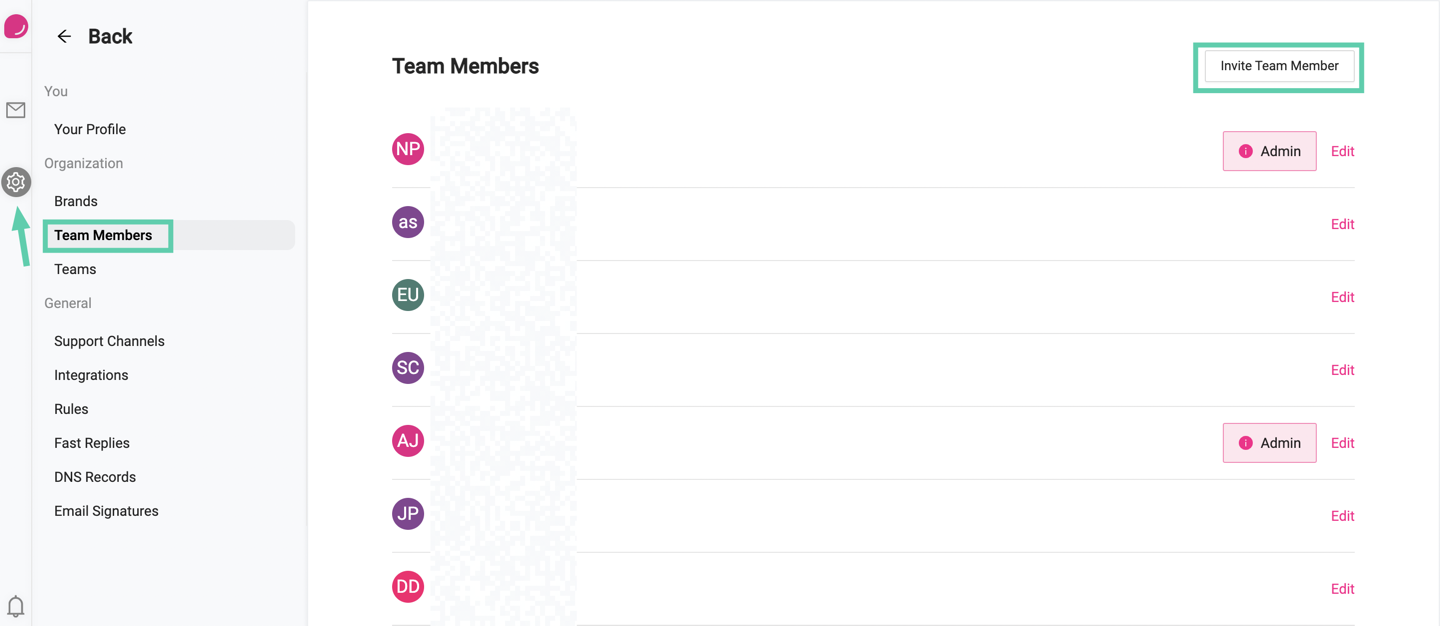
- Select [Team Members] and then click [Invite Team Member] (highlighted in the screenshot)
- Enter the team member’s first and last name, email address, an optional User Role (used in email signatures), and create a username for them.
- Finally, choose the User Permissions: Admin or Agent. An Admin can control access to support channels and add or delete team members. For an Agent, tick the features they can use under Agent Access. Then choose the channels they can use under Support Channels Access
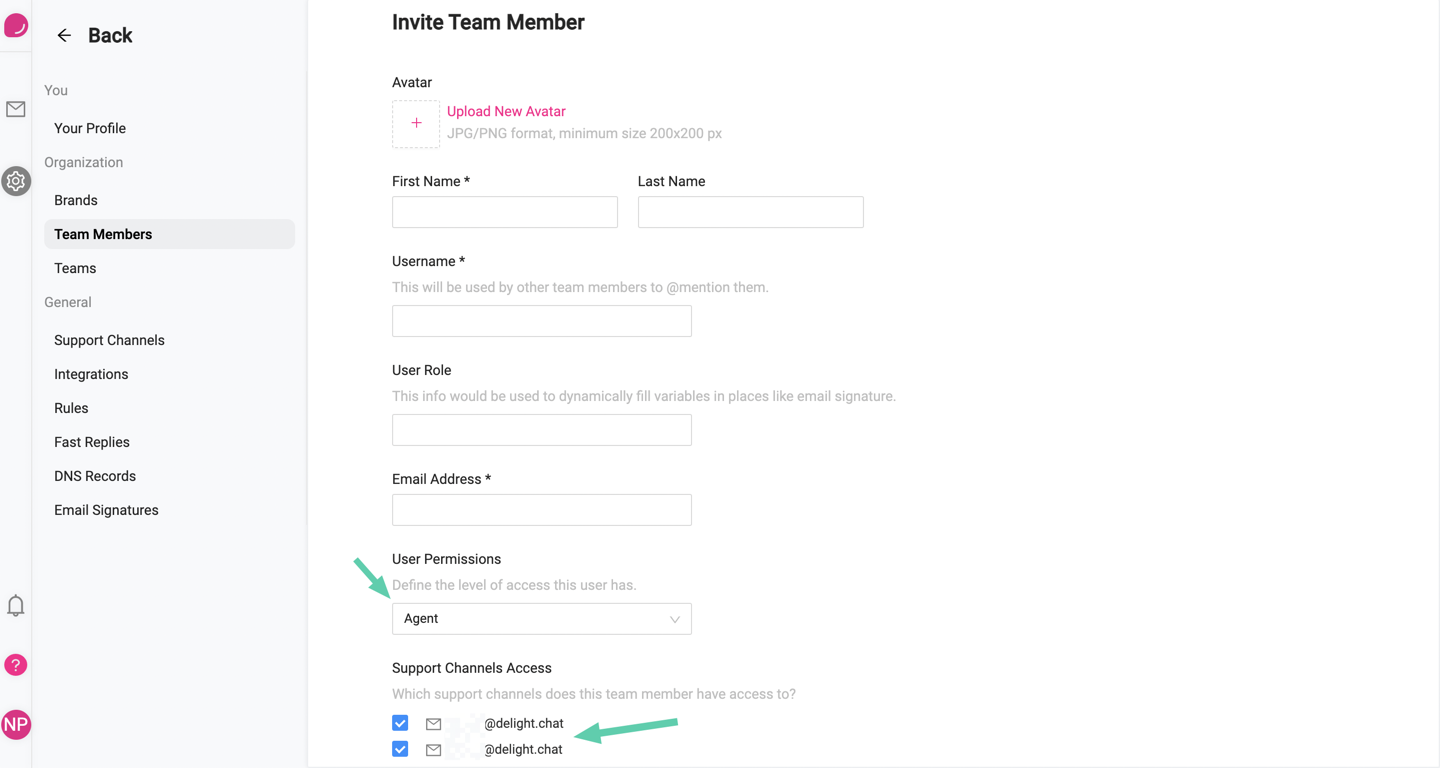
- And click [Invite Team Member] at the end.
The invited team member will be sent an email to set up a password and log into the dashboard. If the email does not arrive, open the team member under Team Members (the tag says Invite Pending) and copy the Invite Link to share with them directly.