You can reply to customers using Facebook messenger and post comments using DelightChat.
Here’s how to integrate Facebook with DelightChat:
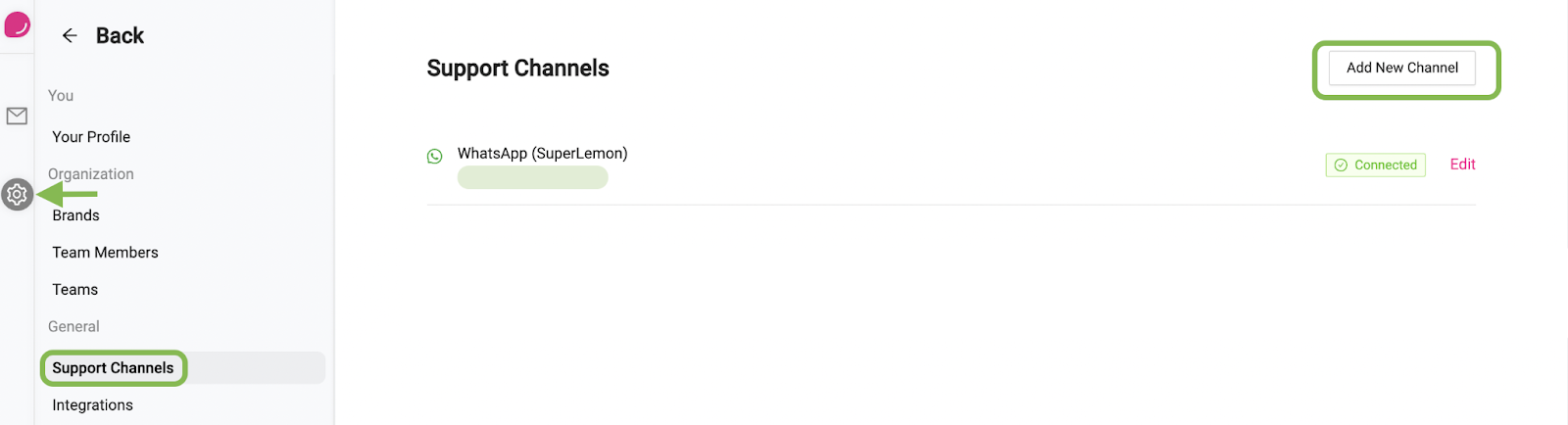
- Click on the Settings icon from the left navigation menu
- Select [Support Channels] and click [Add New Channel] (highlighted in the screenshot below)
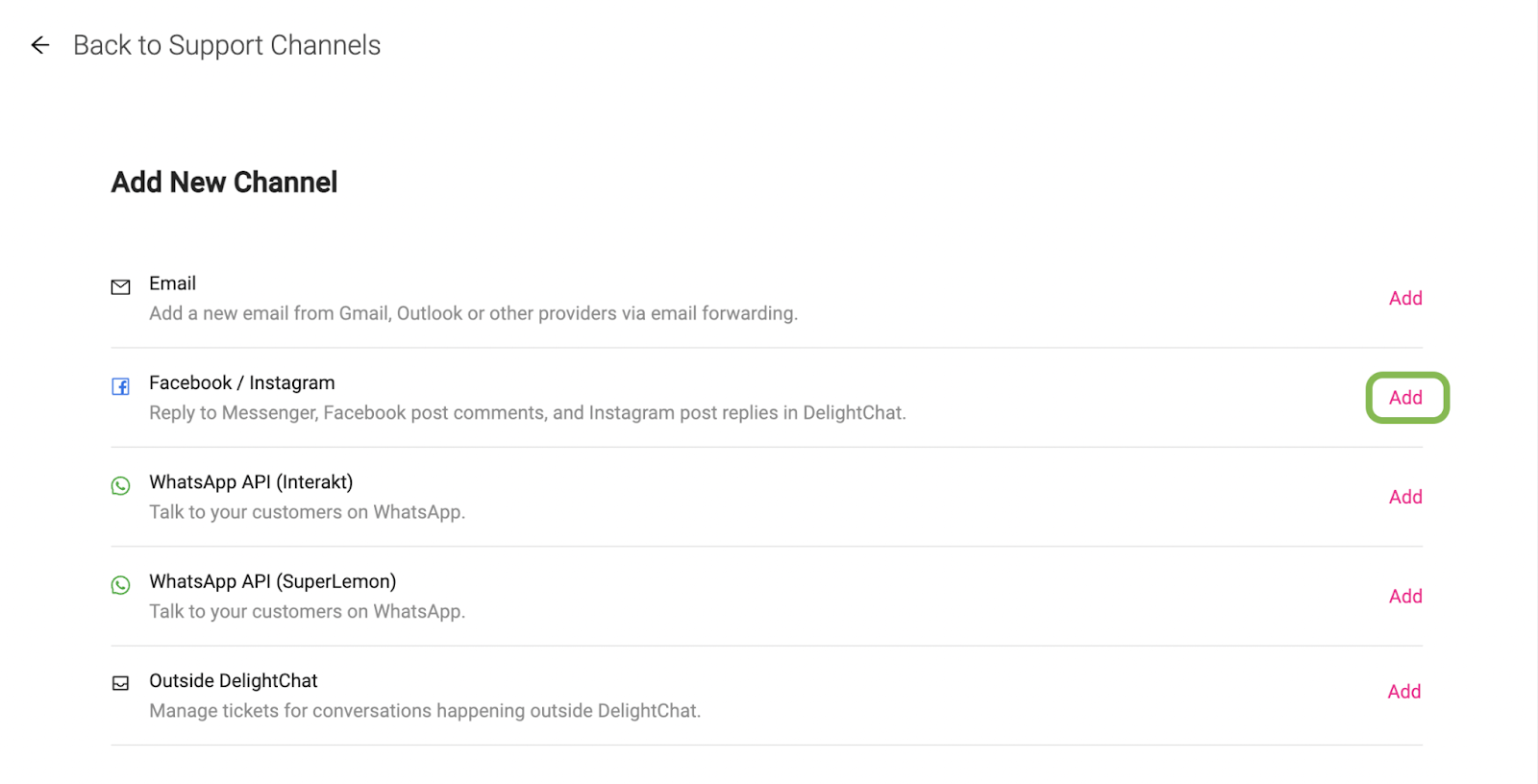
- You’ll see a list of all the supported channels that you can connect to DelightChat. Click [Add] beside the “Facebook / Instagram” channel
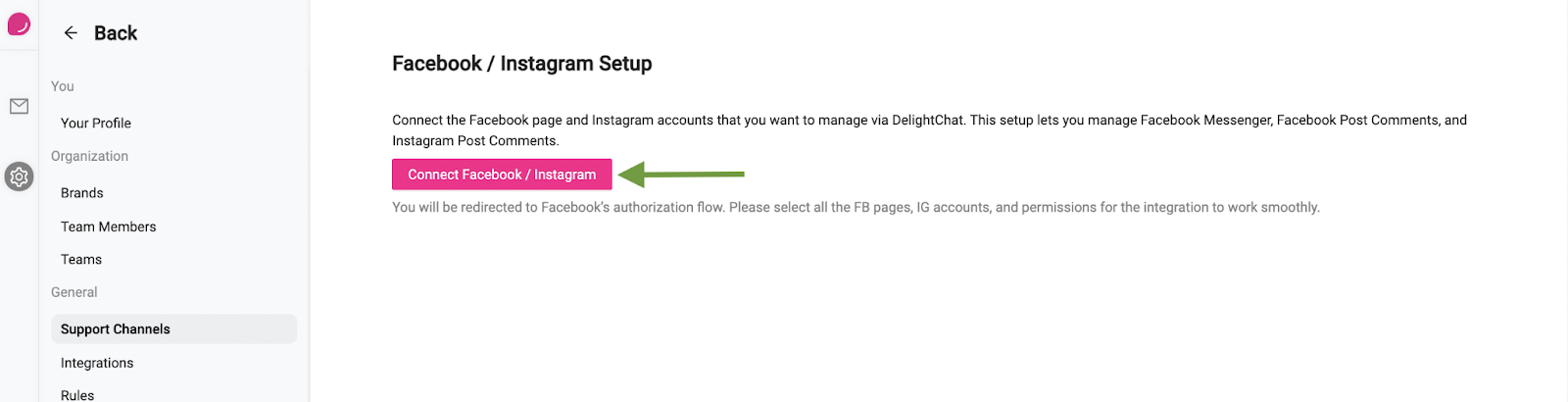
- Click [Connect Facebook/Instagram]
- You will now be redirected to the Facebook authentication page where you need to log in. Click [Next].
- After logging in, you can skip the Instagram integration by clicking [Next] if you do not need it right now.
- Next, choose from the Facebook pages that you wish to integrate with DelightChat and click [Next].

- From the list of permissions, keep all permissions turned on.

DelightChat needs all of them to work with your Facebook pages, and its setup page asks you to select all permissions before you finish.
- Click [Done]. You return to DelightChat. For each Facebook page, tick [Enable Facebook Messenger] and [Enable Facebook Posts & Comments] as needed, choose the Brand, and click [Save]. The integration is complete only after you click [Save]

- Facebook integration will now be displayed on your support channels list here:
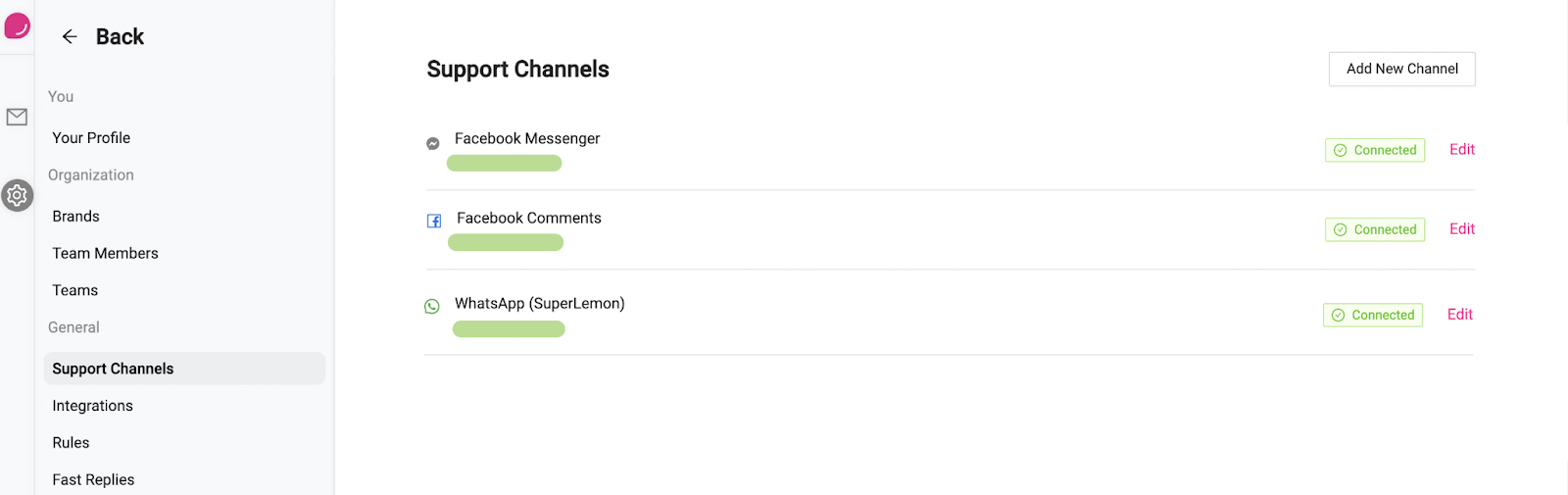
You can now begin using Facebook messenger and comments as support channels from your dashboard. All new messages will be automatically visible on your DelightChat dashboard and you can view and reply to your customers without switching multiple tabs!
Ensure you add DelightChat as the primary receiver of Facebook comments and DMs
In case this feature is not working for you, follow the steps mentioned below and try again.
Steps to follow:
- Go to your Facebook account Page Settings.
- Select Advanced Messaging.
- Click the Configure button under Handover Protocol.
- Using the dropdown, select the application as your Primary Receiver.