If you want to automatically initiate the conversation when a customer messages you during business hours, follow the steps below:
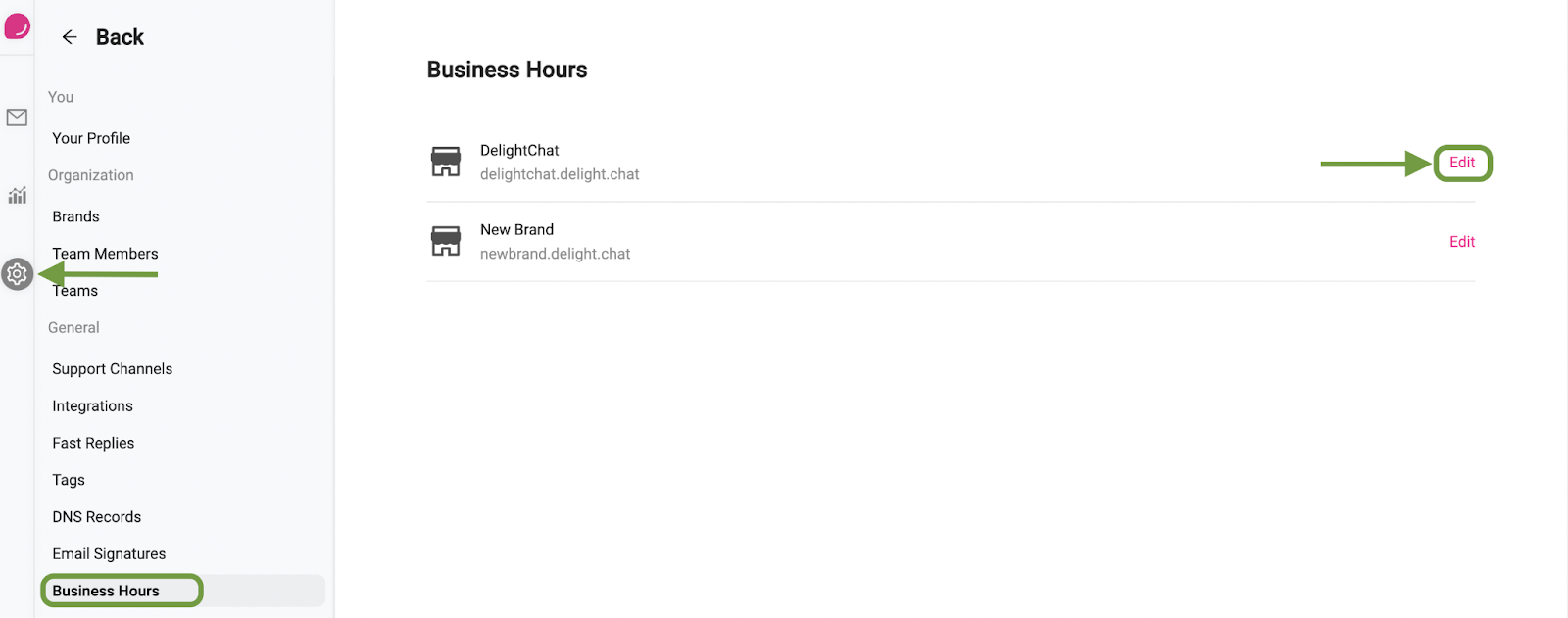
- Add your business hours by going to [Settings] and then [Business Hours]
- Next, click [Edit] for the brand where you want to add the business hours
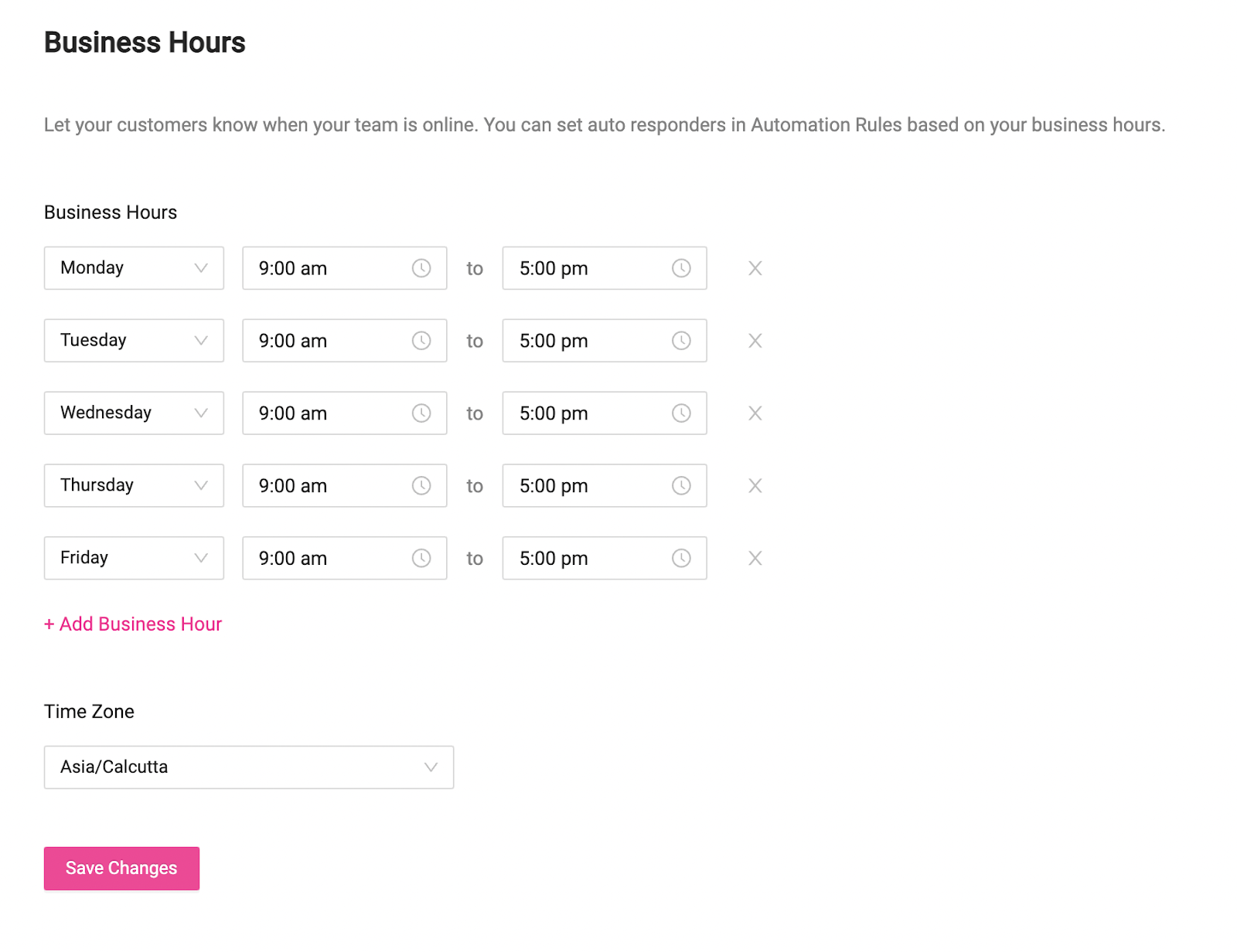
- Setup the business hours for the work week as shown below. Also check the Time Zone on the same page. Business hours follow your brand's Time Zone, not your customer's. If you turn on Holiday Mode, DelightChat treats your business as outside business hours. This rule will not run while Holiday Mode is on.
- Now, we’ll begin with setting up the automation rule. In DelightChat settings, click [Inbox Workflows] and then click [+New Rule]
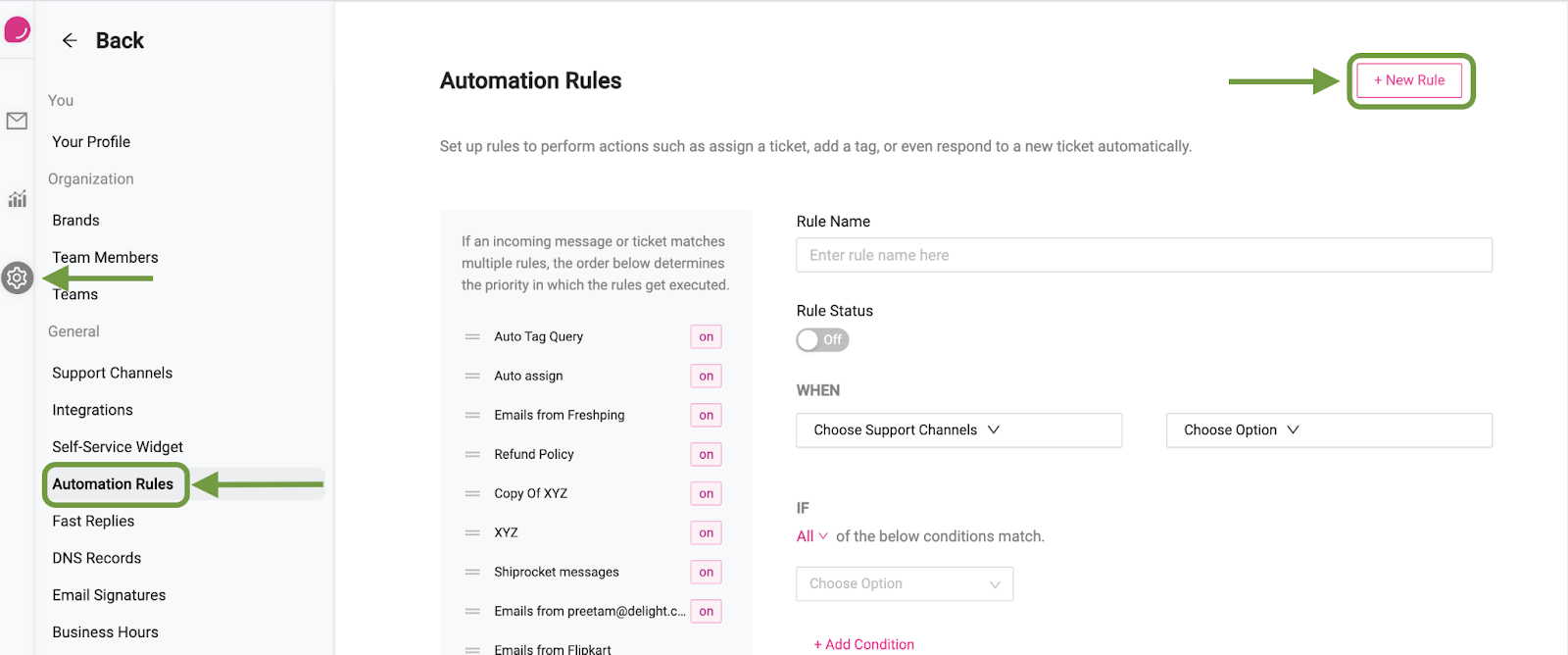
- Next, enter the name of the rule and switch the rule on.
- Under “When”, select the channels that you want the rule to be active on.
- Choose if you want the rule to be activated on creation of a new ticket, on receiving a new message in an existing ticket, or both.
- Under IF, select Time - Within Business Hours.
- Under THEN, select [Auto Reply] and enter a reply that you wish to send out to your customer. To reply only once a day on each ticket, tick [Send auto-reply once per ticket per day]. If you leave it unticked, the rule replies to every message in that time window.

- Finally, click [Save Rule] and your rule is now activated.