DelightChat is an excellent tool for setting up Instagram DM automations, using which you can auto-respond via DMs to prospective customers who leave a comment on your Instagram posts or reels.
How to setup IG Comment to DM Automation
In the app dashboard, you can set up an automation rule to automatically reply to an Instagram Comment via IG DM.
Here are the steps to do so:
1. Go to [Inbox Workflows] from the Settings menu and click [+ New Rule].
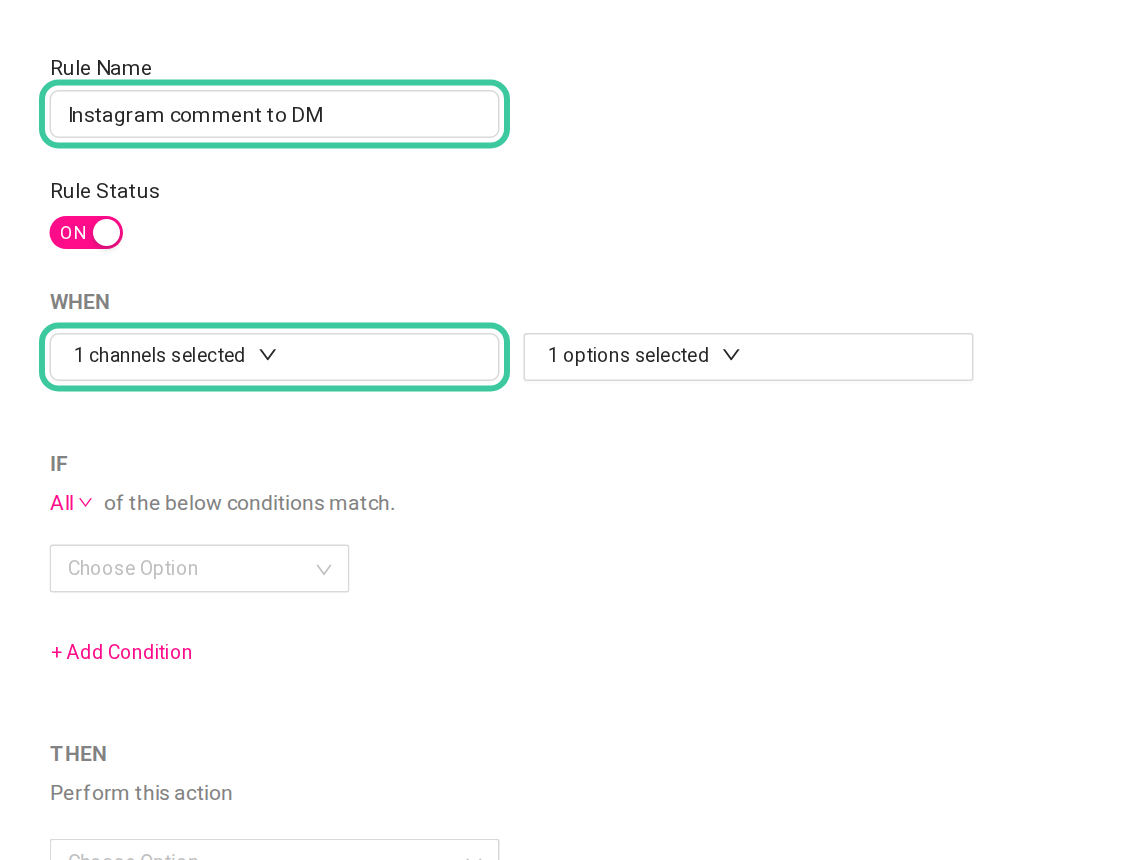
2. Next, enter the name of the rule and switch the rule on.
3. Under “When”, click [Choose Support Channels] and tick your Instagram page. Pick the Instagram channel that receives post comments, not the Instagram DM channel. If the Auto reply (IG/FB Comment to DM) option is greyed out in step 6, you picked the wrong channel.
4. And now click [Choose Option] and tick “New ticket created”, “New message in ticket”, or both. We recommend using it for new ticket creation, which is when a new comment is made on a post.
5. Select the conditions when the automation should run. You can choose to respond to these queries based on keywords using “Message body” -> “Contains any of” or simply respond to all queries within business hours.
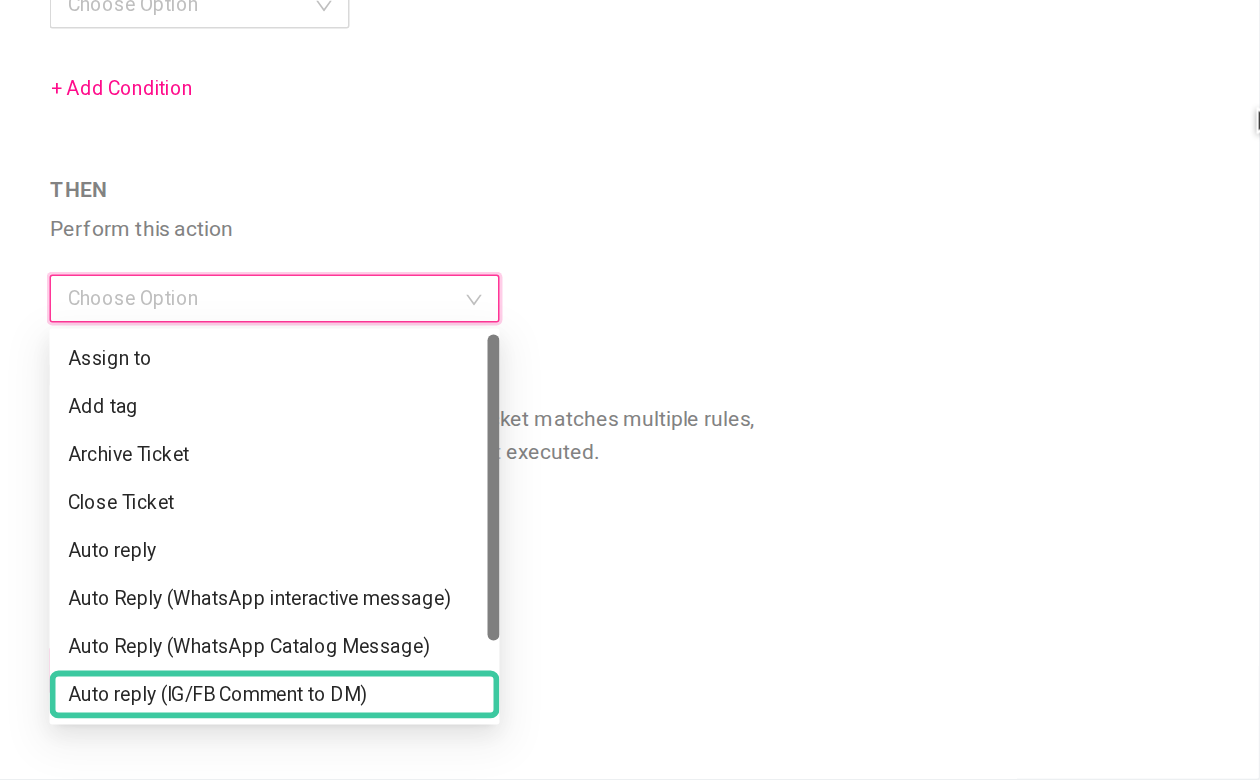
6. Under THEN, select “Auto reply (IG/FB Comment to DM)” option.
7. Now, create the response that you’d like to send to your customers to initiate the conversation.
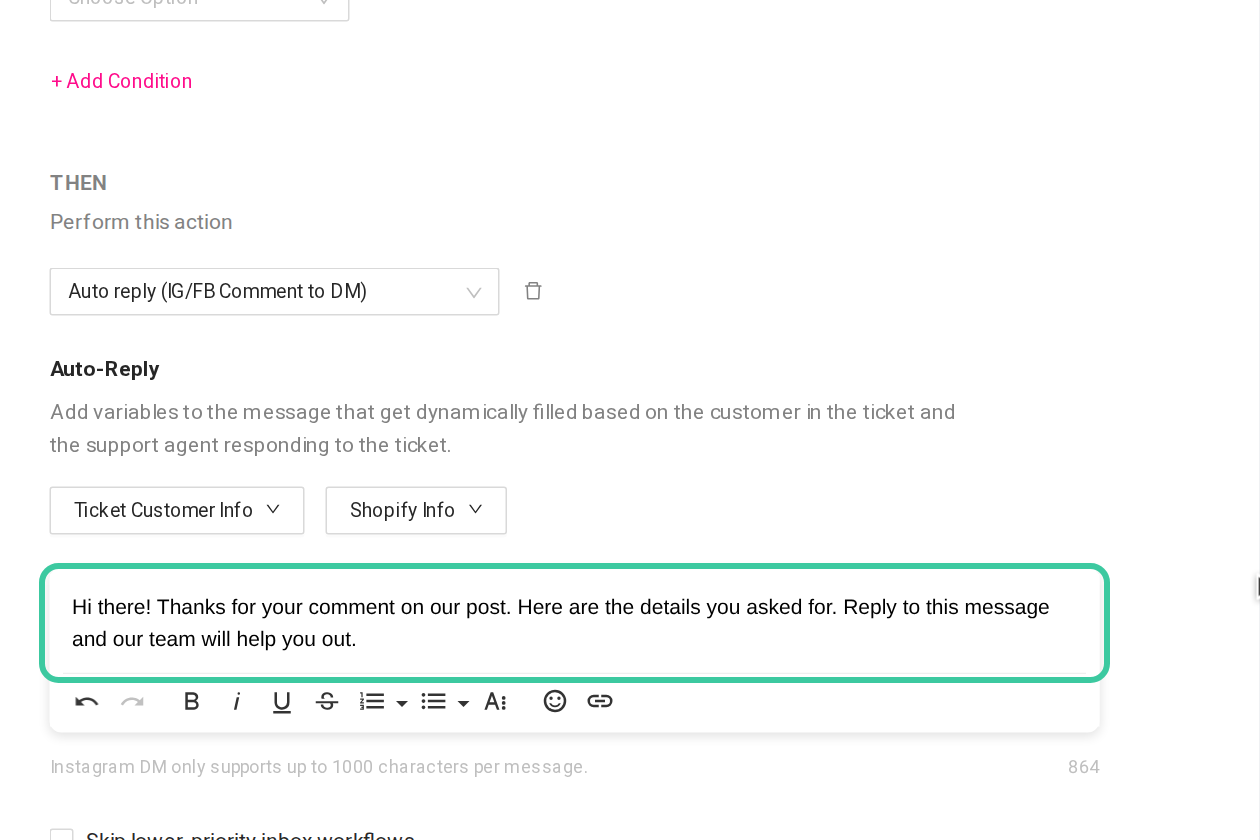
8. Once done, click [Save Rule] Good to know: Instagram allows only one private reply per comment, and you can send it only within 7 days of the comment. Your auto reply is a single message of up to 1000 characters. You can send more messages only after the customer replies to it.