Customer Segments in DelightChat allow you to group customers based on specific behaviors, preferences, and interactions. This feature helps you target your audience effectively by creating tailored marketing campaigns, improving engagement, and optimizing communication efforts.
Whether you're focusing on re-engaging inactive customers or targeting specific purchase behaviors, Customer Segments offer a powerful way to personalize your strategy.
Creating Customer Segments
Step 1: Navigate to the "Customer Segments" Section
1. Log in to your DelightChat dashboard.
2. From the left-hand sidebar, click on Marketing, and under WhatsApp Marketing, select Customer Segments.
Alternatively, you can use this link: https://app.delightchat.io/marketing/segments.
Step 2: Choose Your Segmentation Criteria
1. Click the "Create New Segment" button. The window "Create New Customer Segment" opens. Choose a source and click Create under it. "Shopify Customers" uses customer data from your Shopify store and needs a connected Shopify store. If the store is not connected, the Create button is off and the window shows "Connect your Shopify store to use this source." "CSV Upload" is for a spreadsheet of customer phone numbers (see the CSV questions at the end of this article). 2. For Shopify Customers, pick a "Segment Definition Method". Choose "Sync an existing shopify segment" to select a segment you already made in Shopify Admin, then click "Create Segment". Or choose "Build a new segment" to create one here by selecting predefined filters such as
:
- Days since last order: Group customers based on how long it has been since their last order. Abandoned checkout date: Target customers who left items in their cart but did not complete the purchase. Products purchased: Identify customers who have purchased (or not purchased) specific products.
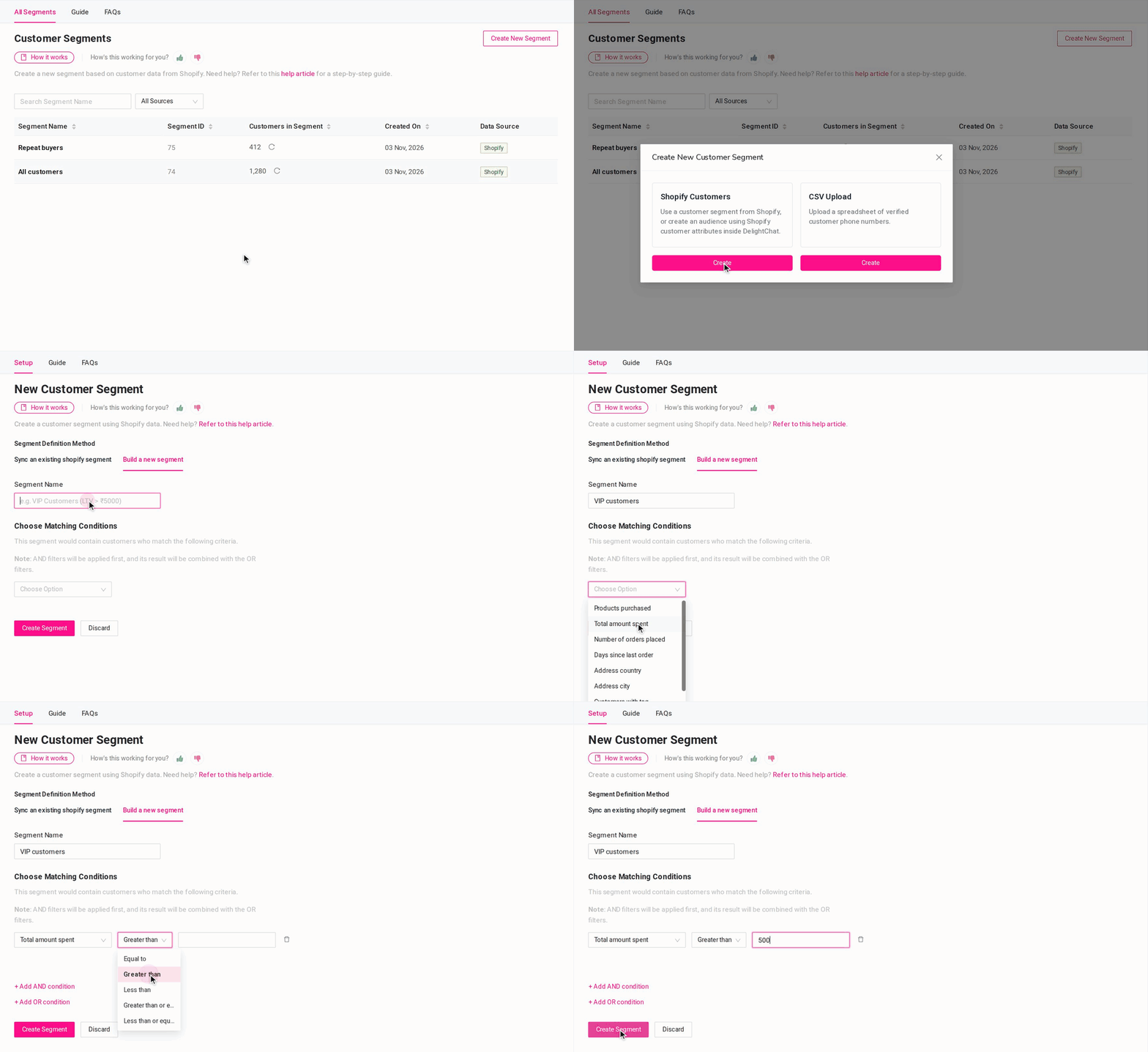
3. Combine multiple filters to create highly customized segments, such as "Customers who abandoned checkout in the last 7 days but purchased in the past 3 months."
Step 3: Save the Segment
1. Once you've applied the desired filters, click "Create Segment."
2. Name the segment for easy identification, e.g., "High-Value Inactive Customers."
Understanding AND & OR Filters in Customer Segments
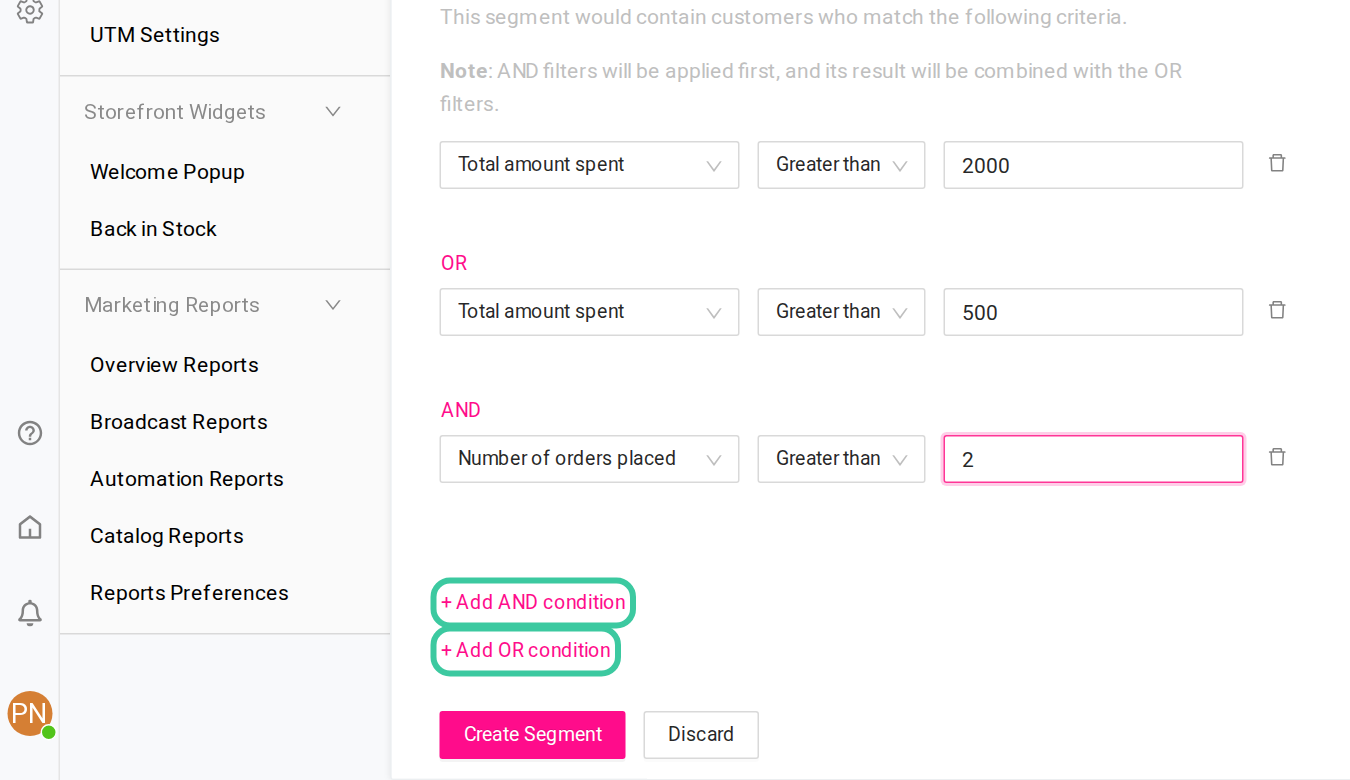
When creating customer segments in DelightChat, you can refine your audience using AND and OR conditions:
- AND Filters: All selected conditions must be met for a customer to be included in the segment. (e.g., "Customers who purchased in the last 30 days AND abandoned checkout in the last 7 days.")
- OR Filters: A customer needs to match at least one of the selected conditions. (e.g., "Customers who purchased in the last 30 days OR abandoned checkout in the last 7 days.")
AND conditions are applied first, and their results are then combined with OR filters, giving you more control over segmentation.
Using Customer Segments
1. Sending Targeted Broadcasts
1. Go to the "Broadcast" section in DelightChat.

2. Select a saved segment from the dropdown while setting up a WhatsApp broadcast.

3. Compose your message and schedule or send it immediately.
2. Automating Campaigns
Use Customer Segments to automate marketing workflows, such as:
- Re-engagement campaigns for inactive customers.
- Upsell campaigns targeting customers who purchased specific products.
3. Analyzing Segment Performance
Track the effectiveness of your campaigns by:
- Monitoring engagement metrics like message open rates and UTM tracking.
- Evaluating segment behavior changes, such as conversions from abandoned checkouts.
Customer Segments Pro Tips
- Regularly update your customer data and keep automatically updated segments relevant to changing customer behaviors.
- Get informed about customer segments with DelightChat’s analytics section to identify trends and optimize campaigns.
- Use segments for testing: Create two segments to A/B test different messages and refine your strategy.
Customer Segments FAQs
Can I combine multiple filters when creating a segment?
Yes, you can combine multiple filters to create highly customized customer segments that meet specific criteria.
Is there a limit to the number of customer segments I can create?
No, DelightChat allows you to create unlimited customer segments to cater to your business needs.
How often are customer segments updated?
Shopify segments are checked when a broadcast is sent, so the broadcast goes to the customers who match at that moment. The customer count in the segment list is not live. Click the refresh icon next to the count (or the Refresh button on the segment page) to update it. A CSV segment does not change until you upload a new CSV. If you delete a segment in Shopify, broadcasts that use it will fail to send.
Can I edit a saved customer segment?
Yes. Open the segment, change the name or the matching conditions, and click "Update Segment". If you made the segment with "Sync an existing shopify segment", you can change only its name here. Change its conditions in Shopify Admin.
For more detailed guidance, visit our Help Center or reach out to our support team.
Frequently Asked Questions
▼Please note that the CSV file must follow the same format as shown in the sample. If there are any mistakes or if the required columns are missing, the CSV file will be considered invalid. The first two columns must be Country Code, then Phone Number, in that order. Uploading a new CSV replaces the numbers from the earlier file.
Make sure to follow the sample format while creating the file.
You can export the data from the 'All Tickets' section in the analytics area. Apply a filter to display only the tickets with the specific tag or channel, and then use the resulting CSV file for the broadcast.
https://app.delightchat.io/reporting/all-tickets
Unfortunately, we don’t currently have a filter to automatically fetch this data.