You can automatically archive tickets by identifying keywords or sender email addresses. This is especially useful if you know that you receive repeated emails from a specific email address that you do not wish to see within DelightChat.
Here’s how you can automate ticket archiving:
- Go to [Inbox Workflows] from the Settings menu and click [+New Rule].
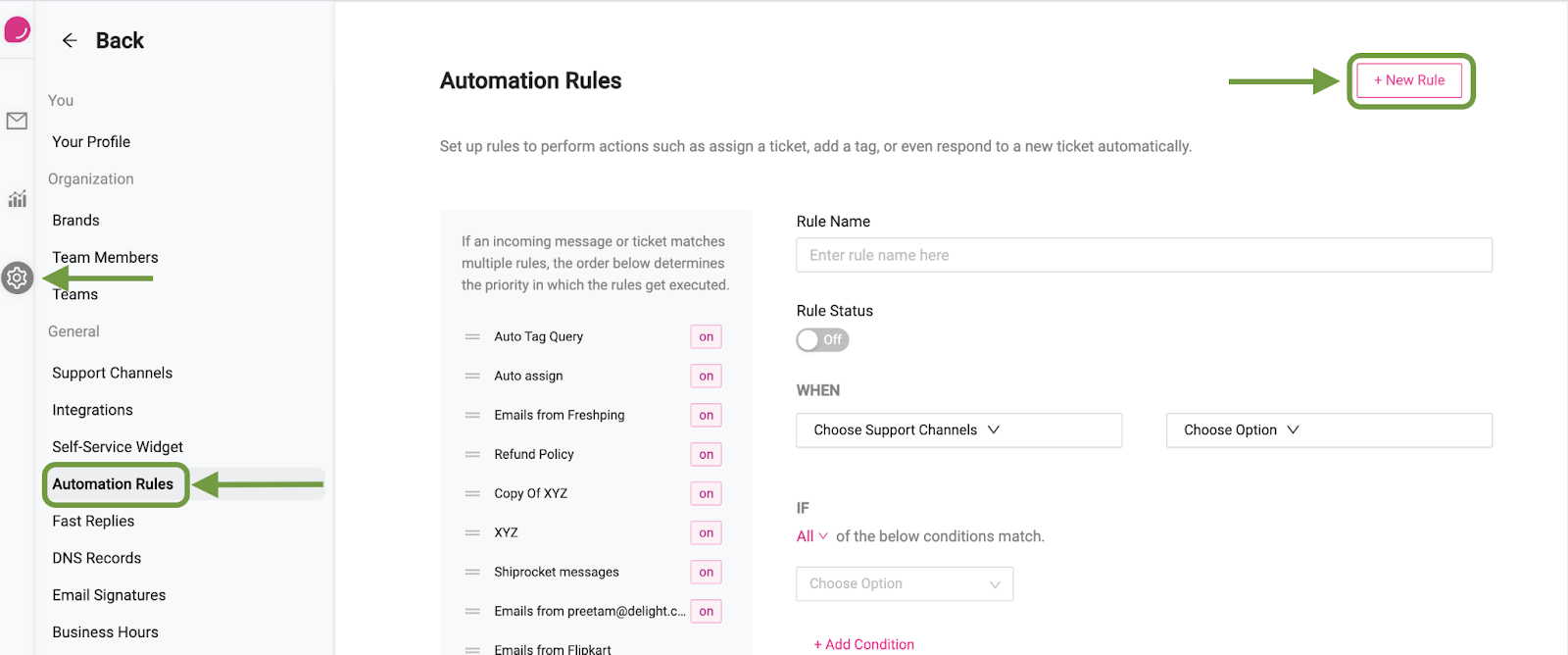
- Next, enter the name of the rule and switch the rule on
- Under “When”, select the email channels that you want the rule to be active on (the sender email address is only available on email tickets), and if the rule should run on new ticket creation and/or when there is a new message on an existing ticket.
- Select the conditions to identify if an email should be archived. In our case, we’ll use “Sender email address” > “Exact match” > the sender’s email address. “Exact match” takes one address per condition. To archive several senders, click “+ Add Condition” for each address and set “If” to “Any” (the default is “All”). To archive everything from one domain, use “Contains” with the domain, for example @example.com
- Under “THEN”, select [Archive Ticket]

Once you’re all set, click [Save Rule]