To add an image header to automation messages such as Order Confirmation, COD Verification, or other WhatsApp marketing automations, you first need to create a WhatsApp message template with an Image Header
The image header cannot be added directly from the automation setup page. It has to be added while creating the WhatsApp message template.
Step 1: Create a WhatsApp Template with Image Header
- Log in to your DelightChat account.
- Go to Marketing.
- Open WhatsApp Templates.
- Click on Create Template.
- Choose the template category based on your use case.
- For order updates, select Utility.
- For promotional or offer-based messages, select Marketing.
- In the template header section, select Image as the header type.
- Add the message body and required variables.
- Submit the template for Meta approval.
- The template must be approved before it can be used in any automation.
.png)
Step 2 - After the template is approved:
Go to Marketing - Open Automations - Select the required automation
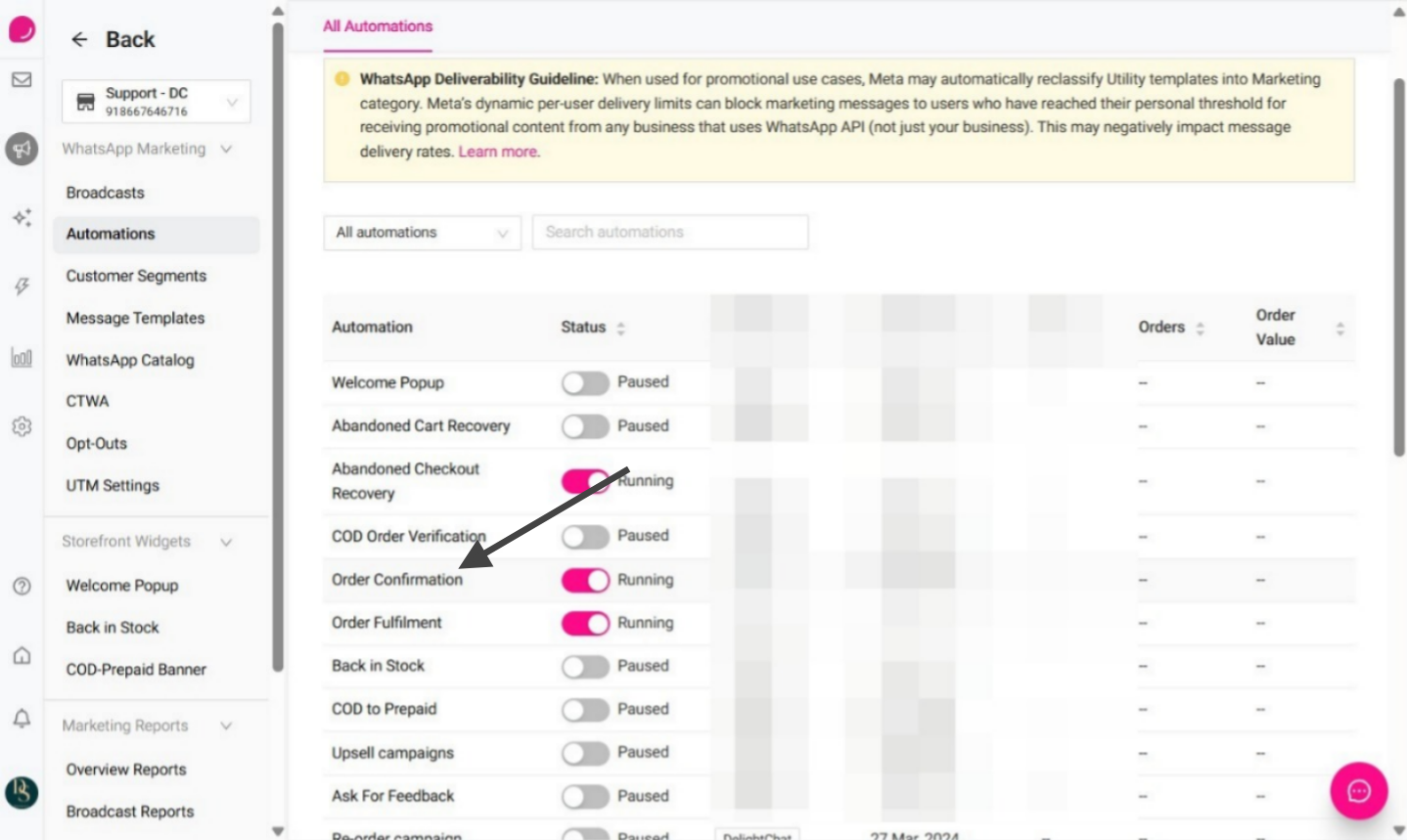
Click Select Message Template, then choose the image template you created.
.png)
A) Under Message Template Header, choose Upload Image to use a fixed or static image in the automation message.
Note: The image must be in JPG format and should not exceed 4 MB.
.png)
B) Select Dynamic Image
Select Dynamic Image to automatically choose based on the customer’s cart or order details.
Select Product Image Only: when you want to display the image of a single product
.png)
Select Items in Cart when you want to display the products included in the customer’s cart or order.
.png)
Enable and save the automation
.png)
Important Notes
- The image header must be added while creating the WhatsApp template.
- You cannot directly add an image header from the automation setup page.
- The template must be approved by Meta before it can be used.
- Existing templates without an image header will not show an image in automation messages. You will need to create a new template with an image header.
- Make sure all template variables are mapped correctly before saving the automation.