Learn how to build interactive carousel message templates in DelightChat to enhance your customer engagement.
Carousel message templates allow you to send multiple cards in a single WhatsApp message. Customers can swipe through the cards to view different products, offers, or options.
Step - 1 - Log in to DelightChat > Marketing > Message Templates - Create Message Template
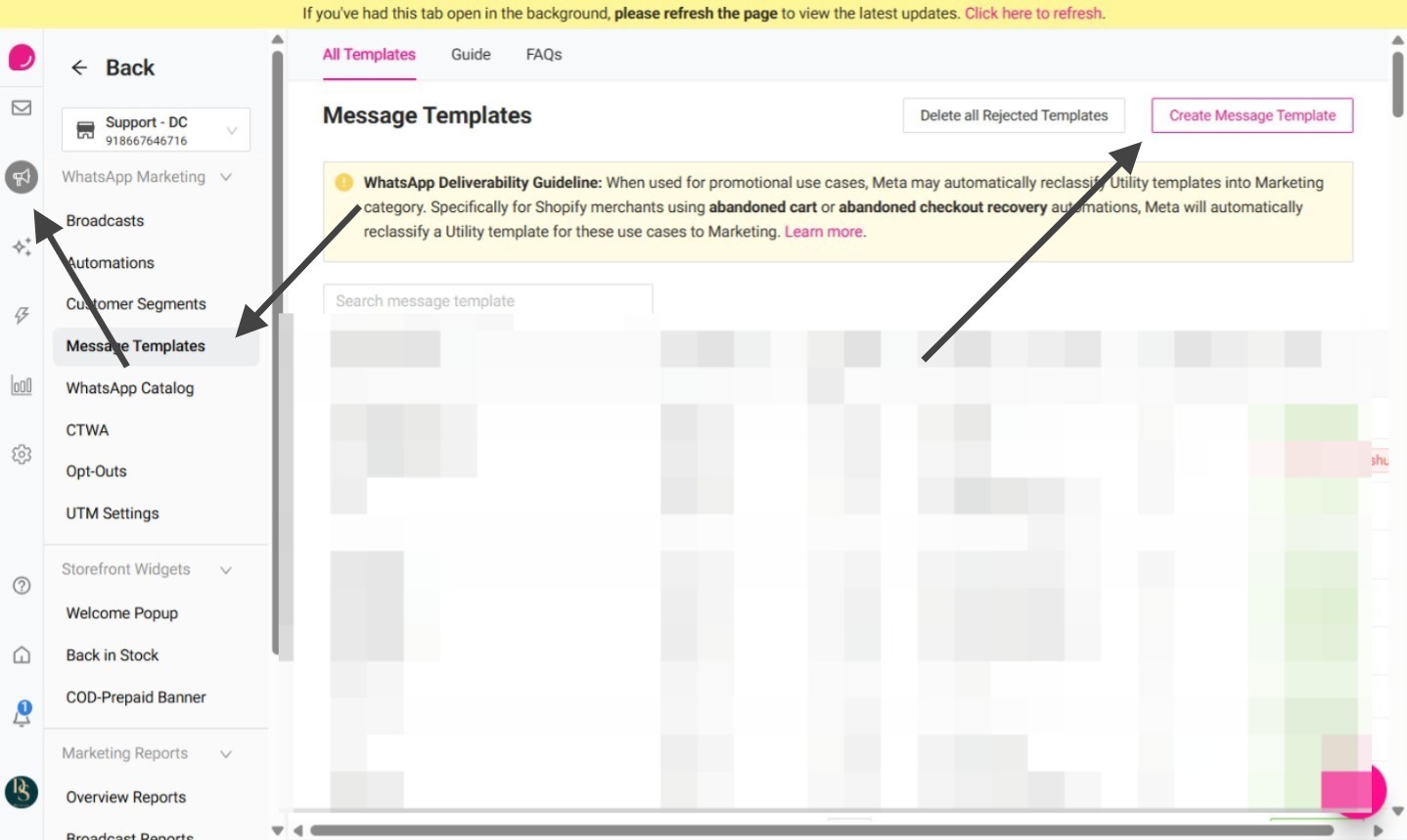
Step 2 - Select Carousel as the template type. In the template type dropdown, select Carousel. This will open the carousel template setup screen.
![**[[Template Type]]**[[: Select ]]**[[Carousel]]**[[.]]](https://cdn.prod.website-files.com/5f68a65d0932e3546d41cc61/6a339c64308f58bc8d30db82_ascreenshot.jpeg)
Step 3 - Add the Main Message Body
In the Main Message Body section, enter the message that will appear along with the carousel cards. This text is used to introduce or explain the content before the customer swipes through the cards.
![[[In the ]] **[[Message Body]]**[[ field, add the message that will appear before the carousel cards.]]](https://cdn.prod.website-files.com/5f68a65d0932e3546d41cc61/6a339c64308f58bc8d30db7c_ascreenshot.jpeg)
Step 4 - Choose the Carousel Type - select the type of media you want to use image or video
![### [[Choose the Carousel Type - select the type of media you want to use image or video]]](https://cdn.prod.website-files.com/5f68a65d0932e3546d41cc61/6a339c64308f58bc8d30db79_ascreenshot.jpeg)
Step 5 - Choose the number of carousel cards
In the Number of Cards section, enter how many cards you want to add. You can add up to 10 carousel cards. Each card can be used to show a product, offer, category, or option.
![### [[Select the Number of Cards. Enter the number of carousel cards you want to add. You can add up to ]]**[[10 carousel cards]]**[[ in one template.]]](https://cdn.prod.website-files.com/5f68a65d0932e3546d41cc61/6a339c64308f58bc8d30db76_ascreenshot.jpeg)
Step 6 - Add the Carousel Card Body
In the Carousel Card Body section, enter the text that should appear inside the selected carousel card. Make sure you add content for each card before applying for template approval.
![[[For every card, add the ]]**[[Carousel Card Body]]**[[ text. Use the card numbers to switch between each carousel card.]]](https://cdn.prod.website-files.com/5f68a65d0932e3546d41cc61/6a339c64308f58bc8d30db86_ascreenshot.jpeg)
Step 7 - Add buttons
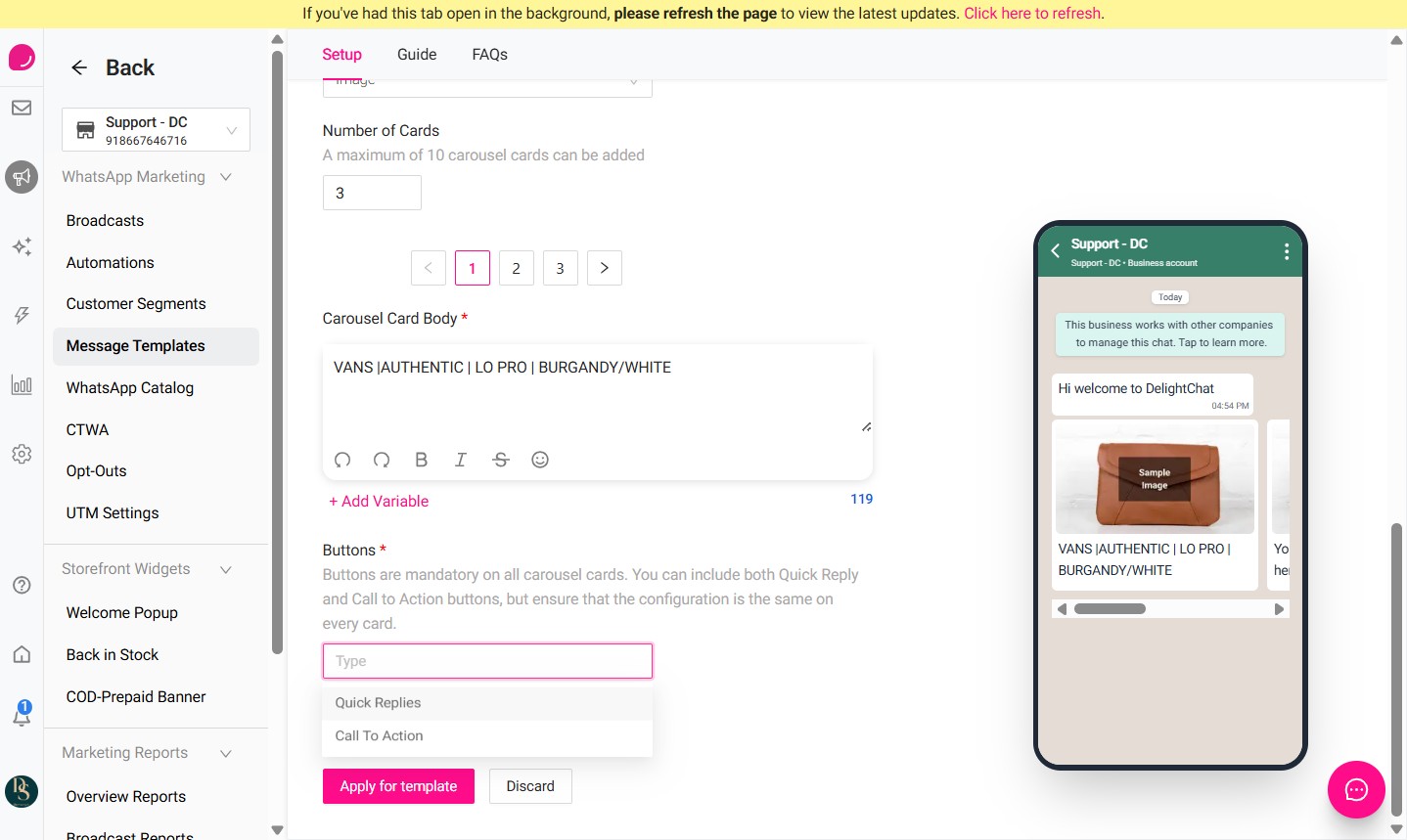
Buttons are mandatory for carousel cards. In the Buttons section, select the button type:
- Quick Replies
- Call To Action
You can include Quick Reply or Call To Action buttons based on your requirement. Please note that the button configuration should be the same across every carousel card. Use the card numbers to switch between cards and configure the button for each one.
For example, if Card 1 has a “Shop Now” Call To Action button, the other cards should also follow the same button structure.
Step 8 - Review all carousel cards
Before submitting the template, check the following:
- Main message body is clear
- Number of cards is correct
- Each card body is added correctly
- Variables are placed properly
- Button type and button text are correct
- Button configuration is the same across all cards
Step 9 - Submit the template
Once all details are added, click Apply for template. The template will be submitted for approval. Once approved, you can use it in supported WhatsApp broadcasts or automations.