Back in stock is similar to the welcome pop-up widget. Once you enable the Back in stock widget, the pop-up will appear for all out-of-stock products on your website, allowing customers to enter their contact details to subscribe for restock notifications.
When the product is restocked, an automated notification message will be sent to the subscribed customers.
Illustrative image
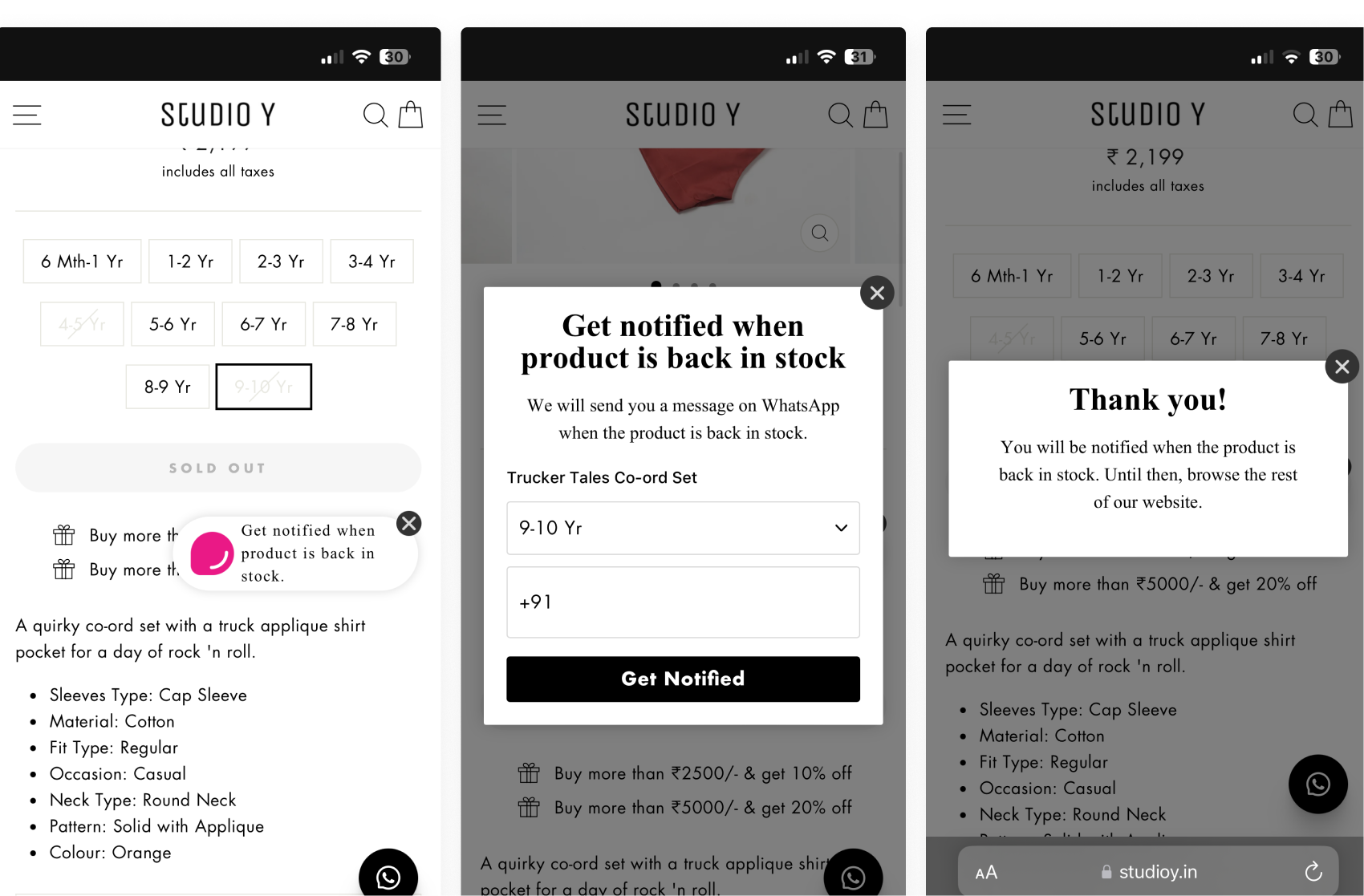
Customers can provide their number, and in our analytics data, we can see which customer has subscribed to which product. After you restock the product, the BIS (Back in stock) automation will automatically send a message to the customer.
Back in Stock is a paid add-on feature available in DelightChat.
.png)
To implement a Back-in-Stock (BIS) flow, you can enable the Back-in-Stock widget within your existing DelightChat account.
Since the DelightChat app is already embedded in your Shopify store, you only need to enable the feature from your Shopify theme settings.
Steps to Enable Back in Stock Manually in Shopify
- In Shopify Admin, go to Sales Channels → Click on Online Store → Select Themes.
- Click Customize on your currently active theme. This will open the theme editor.
- In the left-side panel, click on App Embeds.
- Toggle ON the option labeled “Back in Stock” (with the DelightChat logo).
- Click Save.
After you save, open Marketing > Back in Stock in DelightChat and click Verify Integration. Then turn on Enable Back in Stock Popup. The popup stays off until you turn it on. To send messages to subscribers, also turn on the Back-in-Stock Message automation under Marketing > Automations.
Frequently Asked Questions
▼Use ‘Back in Stock’ alerts for a monthly fee of $10 (Startup plan), $20 (Scale plan), or $30 (Growth plan). You will only be charged if the feature is active at the end of your monthly billing cycle.
• Overwhelming sudden website traffic.
• Inventory running out immediately after restock. Set a batch size from 100 to 10,000 and a delay between batches. Between batches, DelightChat checks whether the product is still in stock. If it has sold out, the next batch is not sent.
Troubleshooting Guide
▼Back in stock popup - Login into DelightChat - speaker icon 📢 (Marketing) → Back in stock → Analytics
Back in stock automation - Log in to DelightChat → 📢 Marketing → Automation →Back in stock→ Performance → Download Analytics Data.
2. Review Automation Logic - Confirm triggers and conditions are correct
3. Contact Support - If issues persist, we're here to help!
• Fill all required variable
• Keep messages short and to the point.
Template
▼Once the new template is approved, wait for 15 minutes, then update it in the automation.