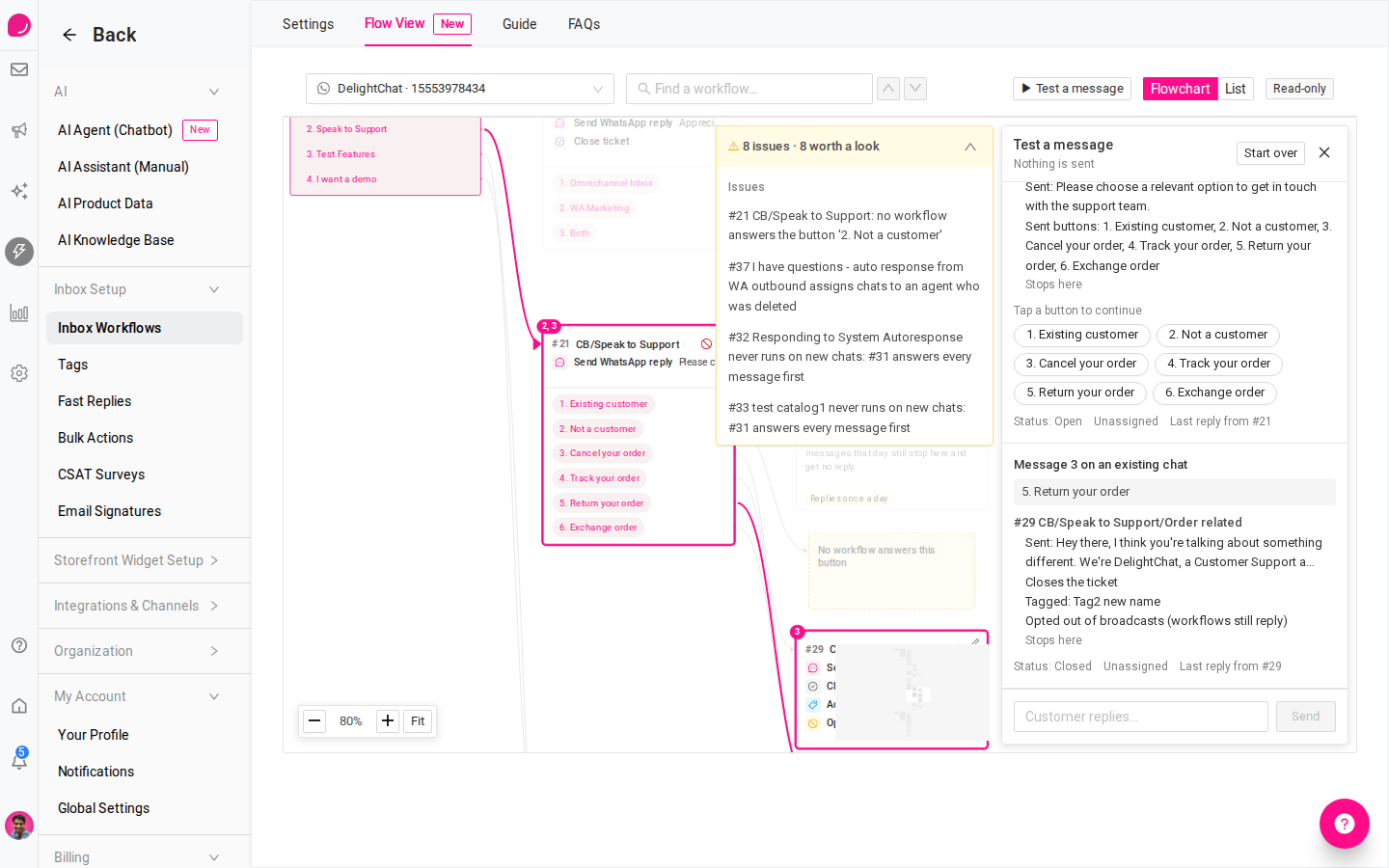
Use Test a message in Inbox Workflows to enter a sample customer message and see which workflows would run. Results appear in the flowchart and list, so you can check the path before relying on it. No messages are sent to customers.
You can now check how a customer message would move through your inbox workflows without starting a customer conversation. Try a greeting, an order question, or a WhatsApp menu choice and follow the resulting path. This helps your team review which replies, assignments, and other actions a workflow would produce before using it with customers.
This is a simulation: it sends no customer messages and makes no changes to live tickets. It helps you check workflow logic, but it does not confirm message delivery or whether an agent is online.
Related setup for WhatsApp button workflows: Create a WhatsApp Chatbot.