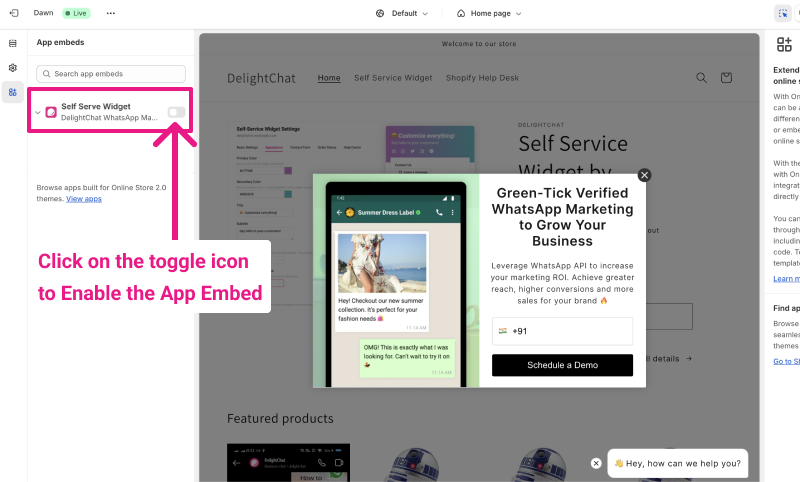
A new Shopify setup page guides you through moving each connected store to DelightChat app embeds. Each store gets its own checklist, with steps to reconnect Shopify or enable the required embeds in your live theme. Complete the checks to keep your storefront features ready for Shopify’s updated requirements.
Stores that need to move their storefront features to Shopify app embeds now have a setup checklist inside DelightChat. The page shows the stores that still need attention and the steps for each one. You can see whether to reconnect Shopify or enable an app embed, instead of checking each integration and theme setting separately.
Follow the checklist for each store shown. If no stores need attention, the page shows that you are all set. Checking the live theme helps you complete the setup for the storefront features you use.