This guide is for support agents and team members who work with AI Agent inside the DelightChat inbox.
Use it to quickly understand how to pause AI, hand a ticket back to AI, bulk assign tickets, and share feedback on AI replies.
.jpg)
1. AI Agent Toggle - ON
AI Agent can be enabled or paused for each ticket from the DelightChat inbox.
When AI Agent is enabled for a ticket, you will see the AI toggle turned ON.

This means AI Agent is allowed to respond to the customer based on:
- AI Knowledge Base
- Shopify product data
- Shopify order data
- Recent conversation context
- Configured AI Agent settings
Important: turning AI Agent ON or assigning a ticket to AI Agent does not force an immediate reply. AI Agent will reply when the customer sends a new message after AI has been enabled or assigned.
2. Pause AI Agent when your team wants to take over
Pause AI Agent when a human agent should handle the conversation manually.
For example, pause AI Agent when:
- The customer needs special handling
- The customer is upset or confused
- The query needs manual investigation
- The customer needs an exception, refund, cancellation, or order change
- Your team wants to personally reply
When AI Agent is paused, it will stop replying in that ticket.
You may see a message like:
AI Bot paused. It will no longer respond to tickets.
.png)
Your team can still reply manually as usual.
3. Assign a ticket back to AI Agent
You can assign a ticket back to AI Agent when you want AI to continue handling future customer replies.
Use this when:
- The customer’s query is now simple enough for AI Agent
- A human agent has finished intervening
- You want AI Agent to answer the next incoming customer message
Important: after assigning a ticket to AI Agent, it will not reply immediately. AI Agent will wait until the customer sends a new message.
4. Bulk assign tickets to AI Agent or a team member
Bulk assign helps you assign multiple tickets at once instead of opening each ticket one by one.
Use this when you want to move several tickets to:
- AI Agent
- A specific team member
- A team
.jpg)
.jpg)
Steps to bulk assign tickets
- Go to the DelightChat inbox.
- Select the tickets you want to assign using the checkbox next to each ticket.
- Click Choose Action.
- Select Assign Tickets.
- Choose AI Agent, a team member, or a team from the dropdown.
- Click Perform Bulk Action.
The selected tickets will now be assigned to the chosen assignee.
You can use bulk actions only after selecting one or more tickets.
Apart from assigning tickets, bulk actions can also be used to unassign, close, open, or archive selected tickets.
5. Leave feedback on AI Agent replies
You can give feedback on AI Agent responses directly from the web app.
When you hover over an AI Agent response, you will see thumbs up/down feedback options.
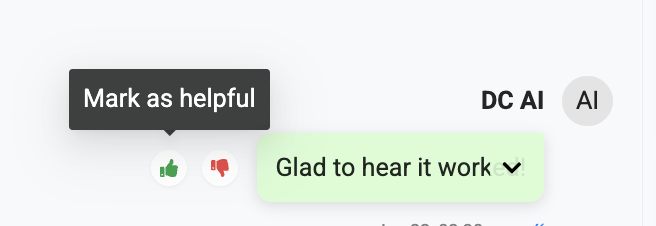
Use this to help improve AI Agent quality.
Leave feedback when:
- The AI answer was helpful
- The AI answer was incorrect
- The AI answer was incomplete
- The AI misunderstood the customer
- The AI should have escalated instead
- The AI escalated when it could have answered
You can also add a note with your feedback to explain what went right or wrong.
This feedback helps the DelightChat team improve AI Agent responses over time.
Best practices for agents
- Pause AI Agent when a customer needs human judgment or manual action.
- Assign tickets back to AI Agent only when it is okay for AI to answer the next customer message.
- Remember that AI Agent replies only after a new customer message comes in.
- Use bulk assignment when many tickets need to be moved together.
- Leave thumbs up/down feedback whenever an AI response is clearly good, bad, incomplete, or unexpected.
Key takeaway
AI Agent is meant to work with your support team, not replace team judgment.
Use AI Agent for common, repeatable queries. Pause it when a human should step in. Assign tickets back to AI when the conversation is safe for AI to continue. Leave feedback on AI responses so the system can keep improving.